
In this article:
- Daily fridge temperatures
- Fridge logs
- Edit a fridge log
- Mark a fridge as broken
- Mark a fridge as fixed
- Print Fridge Temperature Report
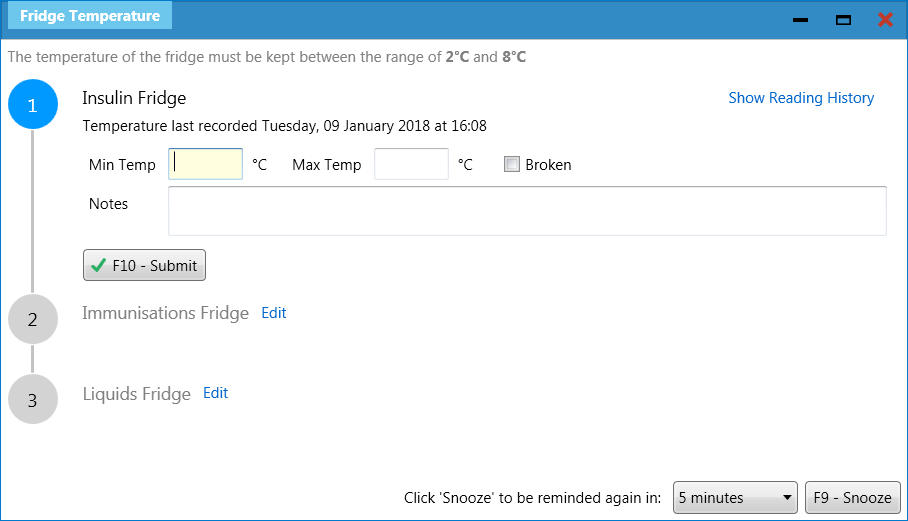
The Fridge Temperature screen enables you to record the daily minimum and maximum fridge temperatures of all the fridges in your pharmacy, and mark fridges as broken or fixed.
If configured, it automatically displays when first launching ProScript Connect, after logging in from the ProScript Connect Login main screen and signing in as the responsible pharmacist from the Attendance Register Manager.
Daily fridge temperatures
The Fridge Temperature screen is displayed automatically after logging into ProScript Connect and signing in as the Responsible Pharmacist for the first time that day.
You can add additional fridges from the Location Manager screen.
- On the Fridge Temperature screen, record the minimum and maximum temperatures for the required fridge including notes as appropriate.
- Click F10 – Save.
- Repeat the process for all the fridges in your pharmacy.
 Tip: You can configure the minimum and maximum fridge temperatures in your pharmacy within Edit Application Settings (Locations) and set the values.
Fridge logs
You can add a new fridge log or edit an existing one from the Locations Manager screen.
- On the Locations Manager screen, select the required Fridge. The Temperature Reading History is displayed at the bottom of the screen.
- Click F5 – Add New Fridge Log.
- On the Add New Fridge Log screen, complete the minimum and maximum temperatures.
- Click F10 – Save.
Edit a fridge log
- On the Locations Manager screen, select the required Fridge. The Temperature Reading History is displayed at the bottom of the screen.
- Select an existing fridge log in the Temperature Reading History.
- Click F6 – Edit Selected Fridge Log.
- On the Edit Fridge Log screen, edit the fields as required.
- Click F10 – Save.
Mark a fridge as broken
- On the Fridge Temperature screen, select the Broken tick box. An orange snippet indicating the fridge is BROKEN is displayed.
- Complete the mandatory notes field.
- Click F10 – Submit.
You can also mark a fridge as broken at any time from the Locations Manager screen. Simply select the required fridge, click F5 – Add New Fridge Log and complete the details of the broken fridge.
Mark a fridge as fixed
- On the Fridge Temperature screen, since the fridge was previously marked as broken, and orange snippet, is displayed asking whether the fridge is now fixed.
- Click F1 – Yes and record the fridge temperatures as usual.
- Click F10 – Submit.
You can also mark a fridge as fixed at any time from the Locations Manager screen. Simply select the required fridge, click F6 – Edit Selected Fridge log, confirm the fridge is fixed and then record the fridge temperatures.
Print Fridge Temperature Report
- On the Locations Manager screen, select the required Fridge and click F4 – Print.
- On the Fridge Temperature Report screen, select the required filters, date range, report type and fridge, then click F10 – Run Report.
- From the Report Preview screen, you can select to either export or print the report.