
In this article:
- Enrolling the Patient to NMS
- Completing a New NMS
- Completed Claimable
Enrolling the Patient to NMS
Enrolment after Dispensing
- The NMS Notification screen is automatically displayed when you dispense and endorse an item that belongs to one of the specific target groups.
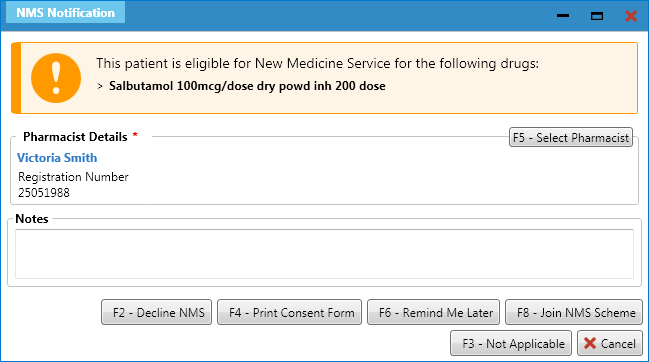
- From the NMS Notification screen, to select a pharmacist, click F5 – Select Pharmacist.
- Enter notes if required then click F8 – Join NMS Scheme.
Other options available from this screen:
- To decline the notification for this patient, click F2 – Decline NMS. This will move the NMS record to the Escaped/Declined tab, where you can either remove the patient or reinstate.
- To print the patient consent form, click F4 – Print Consent Form.
- To continue the notification for this patient later, click F6 – Remind Me Later. This will move the notification to the General tab for the notification to be reviewed at a later stage.
- To mark the notification as not applicable, click F3 – Not Applicable. This means that the NMS can’t be claimed for.
Enrolment from the NMS Manager
When the notification has been accepted it is displayed on the NMS Manager screen, under the General tab. Any notification that was escaped or declined is displayed in the Escaped/Declined tab.
- From the ProScript Connect Main Screen, click ProScript Connect, then select NMS Manager.
- On the NMS Manager screen, locate the record you wish to continue with:
-
- Records marked as Join NMS Scheme are displayed in the General tab. Select the record, then click F3 – Continue.
- Records marked as Declined, or that were Escaped/Cancelled are displayed in the Escaped/Declined tab. Select the record, then click Reinstate NMS.
Completing a New NMS
The NMS review is comprised of three stages, which once begun, will appear as separate tabs within the review form:
- Patient engagement
- Intervention appointment
- Follow up
Across these tabs, additional function keys are available:
- To view the patient’s PMR in a separate tab, click F1 -View Patient PMR.
- To print the GP referral form, click F8 – Print GP Referral Form. This button only becomes active when the referral section of either the Intervention or Follow Up Questionnaire has been completed.
- To save your progress to be reviewed at a later stage, click F9 – Save.
Completing the Patient Engagement
On the Patient Engagement tab, the following mandatory information is required:
- Medication History – select whether the patient has had the listed medication(s). To edit the drug list, click F4 – Add Drug List.
- Consent – select the method the patient entered the service.
- Consent Type – select how consent was obtained. To print the NMS consent form, click F6 – Print Consent.
- Condition(s) / Therapy Advice – select one or more of the available conditions or therapy areas. If Depression is select and the patient is under the age of 18, a warning NMS Eligibility message is displayed.
- Healthy Living Advice – select one or more of the healthy living advice areas that has been provided. If no advice was given, select Not Provided.
Additional information can be added/ edited:
- Notes – add as required.
- GP Details – is populated based on the prescriber details within the patient’s PMR. To edit, click F3 – Change Prescriber. You’ll be given the choice to save this on the patient’s PMR.
- Pharmacist’s Details – is populated based on the pharmacist details saved on the NMS Notification. To edit, click F5 – Select Pharmacist.
When all details have been completed, select one of the following:
- To save the patient engagement as completed and now book the intervention appointment, click F10 – Save & Book Intervention Appointment.
- To save the patient engagement as completed and book the intervention at a later stage, click F11 – Save & Complete Engagement. The engagement is saved in the NMS Manager with a green infill to indicate it. is complete. The Intervention will have a purple infill as a reminder to Book Appointment.
- To save your progress and complete the patient engagement at a later stage, click F9 – Save.
Booking the Intervention Appointment
- After completing the Patient Engagement, you can now book the Intervention Appointment with the patient, either
- Select F10 – Save and Book Intervention Appointment OR
- Select the required Engagement record with an outstanding Intervention Appointment
- Click Book Appointment.
- The Book Appointment for NMS Intervention screen is displayed.
On the Book Appointment for NMS Intervention screen, the following information is required:
- Description – this can be updated if required.
- Appointment Date – the system will populate an appointment date based on the Suggested Date Range. This date and time can be amended if required.
- Notes – add as required.
- Patient – the patient information is displayed, to amend any of the patient’s details click on the patient’s name. You may also be able to access other services here if enabled, such as Prescription Collection (PTS), Patient Compliance, SMS messaging.
- Suggested Date Range – this is the system generated date range for the intervention appointment and is a read-only field.
- Appointment Method – select how the appointment will take place.
Once the Book Appointment for NMS Intervention screen is complete, click F10 – OK. The appointment is saved in the NMS Manager with a green outline in the Intervention column.
Completing the Intervention
 If the patient has been instructed to stop taking their medication by their GP prior to the intervention, the NMS will not be claimable.
- From the NMS Manager screen, use the filters to locate the relevant NMS record with a green infill in the Engagement column and a green outline in the Interventions column.
- Click F3 – Continue.
- The Intervention tab is now displayed.
On the Intervention tab, the following information is required:
- Patient Attendance – select whether the patient attended the intervention appointment. If the patient did not attend, select a reason.
- Healthy Living Advice – select one or more of the healthy living advice areas that has been provided. If no advice was given, select Not provided.
- Pharmacist Details – this information is populated based on the pharmacist details saved on the NMS Notification. This can be edited, click F5 – Select Pharmacist.
- Drug(s) – select a drug, then click F6 – Continue to open the Intervention Questionnaire.
Completing the Intervention Questionnaire
Highlight a drug in the Drug(s) section and select the [F6 – Continue] button. The Intervention Questionnaire window displays.
- On the Intervention Questionnaire:
- Complete the Matters identified during the discussion with the patient tab.
- Complete the Outcome of the discussion with patient tab.
- Add any notes if required.
- To save the questionnaire, click F10 – OK. The drug is marked with a black tick in the Intervention column.
- Repeat the above steps, for each drug listed on the Intervention review.
- Once all information has been entered, do one of the following:
- To save the intervention as completed and book the follow up appointment, click F10 – Save & Book Follow Up Appointment.
- To save the intervention as completed and book the follow up at a later stage, click F11 – Save & Complete Intervention. The intervention is saved in the NMS Manager with a green infill to indicate it is complete and a black tick to indicate it is claimable. It is added to the claimable interventions figure.
- To save progress and complete the intervention at a later stage, click F9 – Save.
 Tip: If the patient has been referred to their GP as a result of the intervention, the NMS record will be considered completed and you will not be required to book a follow up appointment.
Booking the Follow Up Appointment
- After completing the Intervention, if applicable you can now book the follow up appointment with the patient, either:
- Select F10 – Save & Book Follow Up Appointment OR
- Select the require record with an outstanding follow up appointment. The intervention is saved as a purple infill.
- Click Book Appointment.
- The Book Appointment for NMS Follow Up screen is displayed.
On the Book Appointment for NMS Follow Up screen, the following information is required:
- Description – this can be updated if required.
- Appointment Date – the system will populate an appointment date based on the Suggested Date Range. This date and time can be amended if required
- Notes – add as required.
- Patient – the patient information is displayed, to amend any of the patient’s details click on the patient’s name. You may also be able to access other services here if enabled, such as Prescription Collection (PTS), Patient Compliance, SMS.
- Suggested Date Range – this is the system generated date range for the intervention appointment and is a read-only field.
- Appointment Method – select how the appointment will take place.
Once the Book Appointment for NMS Follow Up screen has been completed, click F10 – OK. The appointment is saved with a green outline in the Follow Up column.
Completing the Follow Up
- On the NMS Manager screen, use the filters to locate the relevant NMS record with a completed Engagement, Intervention and a green outline in the Follow Up column.
- Click F3 – Continue. The Follow Up tab details are displayed.
On the Follow Up tab, the following information is required:
- Patient Attendance – select whether the patient attended the follow up appointment. If the patient did not attend, select a reason.
- Healthy Living Advice – select one or more of the healthy living advice areas that has been provided. If no advice was given, select Not provided.
- Pharmacist Details – this information is populated based on the pharmacist details saved on the NMS Notification. This can be edited, click F5 – Select Pharmacist.
- Drug(s) – select a drug, then click F6 – Continue to open the Intervention Questionnaire.
Completing the Follow Up Questionnaire
- On the Follow Up Questionnaire:
- Complete the Matters identified during the discussion with the patient tab.
- Complete the Outcome of the discussion with patient tab.
- Add any notes if required.
- To save the questionnaire, click F10 – OK. The drug is marked with a black tick in the Follow Up column.
- Repeat the above steps, for each drug listed on the Follow Up review.
- Once all information has been entered, do one of the following:
- To save the follow up as completed, click F11 – Save & Complete Follow Up. The follow up is saved in the NMS Manager with a green infill to indicate it is complete and a black tick to indicate it is claimable. It is added to the claimable follow up figure.
- To save progress and complete the follow up at a later stage, click F9 – Save.
Once the Follow Up has been saved and completed, this completes the review and removes it from the NMS workload.
Completed Claimable
Use the Stages filter, Completed Claimable, to find both stages completed. View the claimable figures in the table below for the selected month.